

Artificial intelligence (AI) is no longer just a futuristic concept—it is now a practical tool for businesses to optimize processes, analyze data, and automate tasks. One of the most accessible ways to integrate AI into business workflows is through AI Builder, a feature of the Microsoft Power Platform.
What is AI Builder?
AI Builder is a low-code/no-code platform that allows businesses to incorporate AI capabilities into apps, flows, agents, and other applications. It provides tools to create or use AI models that optimize business processes, enabling organizations to leverage artificial intelligence without requiring extensive coding knowledge.
Businesses can choose between two main approaches:
-
Pre-built AI models – These are ready-made models provided by the Power Platform for common tasks.
-
Custom AI models – These allow you to create, train, and tailor a model to your company’s specific processes.
AI Builder is considered a premium feature and requires AI Builder credits to operate. In the near future, these credits will be merged with Copilot credits, simplifying the credit system. Credits are managed at the environment level and can be pooled or assigned to specific environments as needed.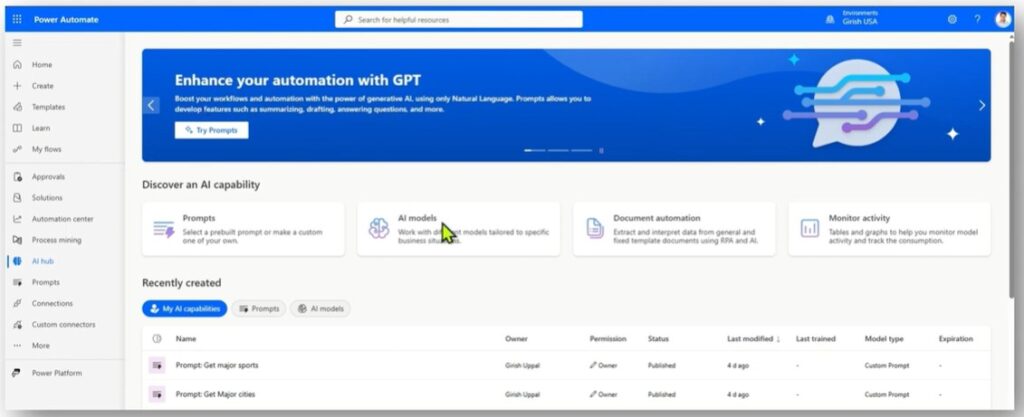
AI Builder Credits
AI Builder credits are assigned through licensing and purchased capacity:
-
Seeded capacity: Some Power Platform licenses include a default allocation of AI Builder credits. For example:
-
Power Apps license: X credits
-
Power Automate license: Y credits
-
Dynamics 365 license: Z credits
-
-
Purchased credits: Additional credits can be bought individually and combined with seeded credits for total tenant capacity.
Default Credit Allocation
-
Power Automate Premium: 5,000 credits per user per month
-
Power Apps Premium: 500 credits per user per month
Credits are used at the tenant level, with allocation options for individual environments. If AI Builder credits are exhausted, Copilot credits can be used as a fallback.
Managing Credits
Credits can be managed through the Power Platform Admin Center:
-
Navigate to Licensing → Capacity → Add-ons.
-
View total and allocated AI Builder credits.
-
Assign credits to specific environments or allow users to consume unassigned credits.
-
Monitor consumed capacity within each environment.
Where AI Builder Can Be Used
AI Builder integrates with multiple Microsoft services:
-
Power Apps
-
Power Automate
-
SharePoint
-
Teams
-
Custom applications
Depending on the environment, configuration steps may vary, but AI Builder functionality is broadly accessible across the platform.
Exploring AI Builder in Power Apps
In Power Apps, you can access AI Builder via the AI Hub, which provides:
-
AI models
-
Prompts
-
Document automation tools
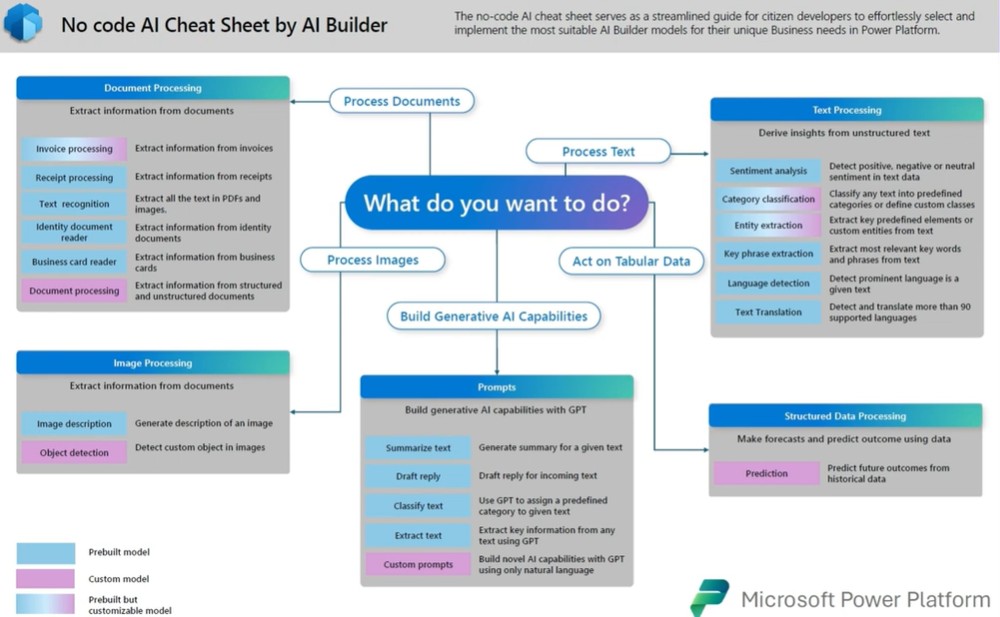
Document Automation
AI Builder can process fixed templates, including:
-
Invoices
-
Receipts
-
Business cards
-
Identity documents (passports, tax files)
-
Health cards
-
PDFs and images
By combining AI and RPA (Robotic Process Automation), businesses can extract and interpret data from these documents automatically.
Text Processing
For text, AI Builder can:
-
Perform sentiment analysis
-
Extract key phrases
-
Detect and translate language
-
Classify text into predefined categories
Color coding distinguishes model types:
-
Blue: Pre-built model
-
Pink: Custom model
-
Gradient: Pre-built but customizable
Structured Data Processing
AI Builder can analyze structured data for prediction and forecasting, allowing businesses to anticipate future outcomes based on historical trends.
Image Processing
AI Builder can interpret images by:
-
Providing image descriptions
-
Detecting custom objects
Prompts and Generative AI
Prompts can be used to:
-
Summarize text or emails
-
Draft responses
-
Classify text
-
Extract information
-
Execute custom instructions with AI models
Using AI Builder in Power Platform
Accessing AI Hub
To access AI Builder:
-
Go to make.power.com → More → Discover All → AI Hub
-
View AI models, prompts, and document automation options
-
Pin frequently used models or prompts for easy access
Creating Prompts
You can build custom prompts by:
-
Providing instructions
-
Selecting a model (e.g., GPT, OpenAI, Anthropic, or Azure AI Foundry)
-
Receiving responses in text, JSON, or document preview
Using AI Builder in Power Automate
In Power Automate, AI Builder actions include:
-
Analyzing business cards
-
Describing images
-
Detecting language
-
Processing documents and identity documents
-
Extracting text from receipts
-
Running prompts
-
Translating text
-
Predicting outcomes
-
Classifying and extracting entities
-
Performing sentiment analysis
Example: Sentiment Analysis
A flow can process a single line or an entire document to determine sentiment:
-
Overall sentiment score (positive, neutral, negative)
-
Sentence-level sentiment
-
JSON outputs for further automation
This can be integrated with a canvas app, where user input is passed through a flow, analyzed by AI Builder, and returned with sentiment results.
Managing AI Builder in Admin Center
Within Power Platform Admin Center → Tenant Settings:
-
Assign AI Builder credits to specific environments
-
Allow users to consume unassigned credits
-
View statistics and monitor credit usage
Credits can also be monitored in Copilot Studio, which shows pay-as-you-go or prepaid capacity.
AI Builder in SharePoint
AI Builder integrates with SharePoint through Classify and Extract:
-
Navigate to a document library
-
Select a document (e.g., an identity document)
-
Use Classify and Extract to automatically analyze and extract data
Summary
AI Builder is a versatile AI tool within the Microsoft Power Platform that can enhance business processes across multiple applications. Its capabilities include:
-
Document processing
-
Text and sentiment analysis
-
Structured data prediction
-
Image processing
-
Custom prompts and AI automation
With AI Builder, businesses can harness AI without extensive coding knowledge, integrate it into apps, flows, and SharePoint, and optimize operations efficiently.