

Tenant-to-Tenant Environment Migration in the Power Platform Admin Center
Complete Guide to Moving an Environment Between Tenants
A new capability in the Power Platform admin center allows administrators to move an entire environment from one tenant to another. This is different from traditional solution migration, which only transfers components between environments within the same tenant. Tenant-to-tenant migration enables the transfer of a full environment across organizational boundaries.
This article explains the scenario, requirements, supported environment types, prerequisites, migration process, administrative steps, and important considerations.
1. Typical Scenario for Tenant-to-Tenant Migration
Consider an organization that operates multiple tenants:
-
A primary company tenant used for production apps, flows, agents, and operational workloads.
-
A separate development tenant used by the development team to explore features, test functionality, and conduct research.
Now imagine that something valuable is built in the development tenant and needs to be transferred into the company’s main tenant. Instead of exporting individual components or solutions, the entire environment can be migrated from one tenant to another.
This is fundamentally different from environment-to-environment migration within the same tenant, which typically uses:
-
Managed solutions
-
Unmanaged solutions
Those methods only move components. Tenant-to-tenant migration transfers the complete environment.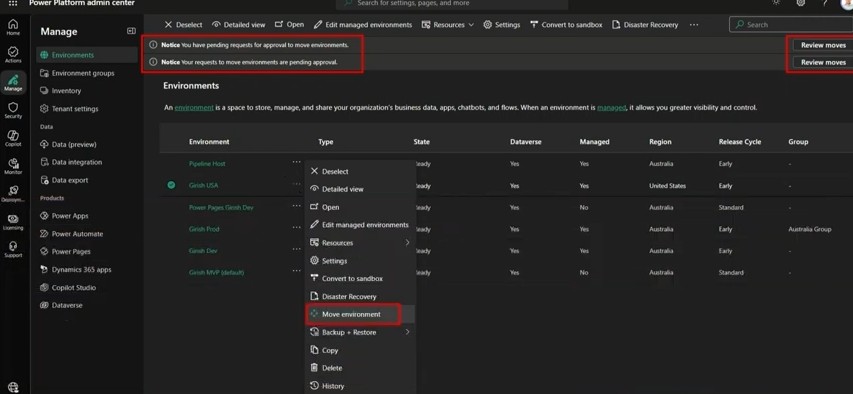
2. Moving an Environment in the Power Platform Admin Center
When an administrator selects an environment in the Power Platform admin center, an option appears to move the environment.
After initiating a move, the interface displays status information such as:
-
Pending request for approval to move environments
-
Your request to move environments is pending approval
Both situations can occur:
-
You initiate a migration request from your tenant to another tenant.
-
Another tenant sends a migration request to your tenant.
Each request must be reviewed and approved before migration completes.
3. Managed Environments Requirement
Tenant-to-tenant migration is supported for managed environments.
A managed environment provides additional governance and administrative capabilities compared to non-managed environments. These extended capabilities make cross-tenant migration possible.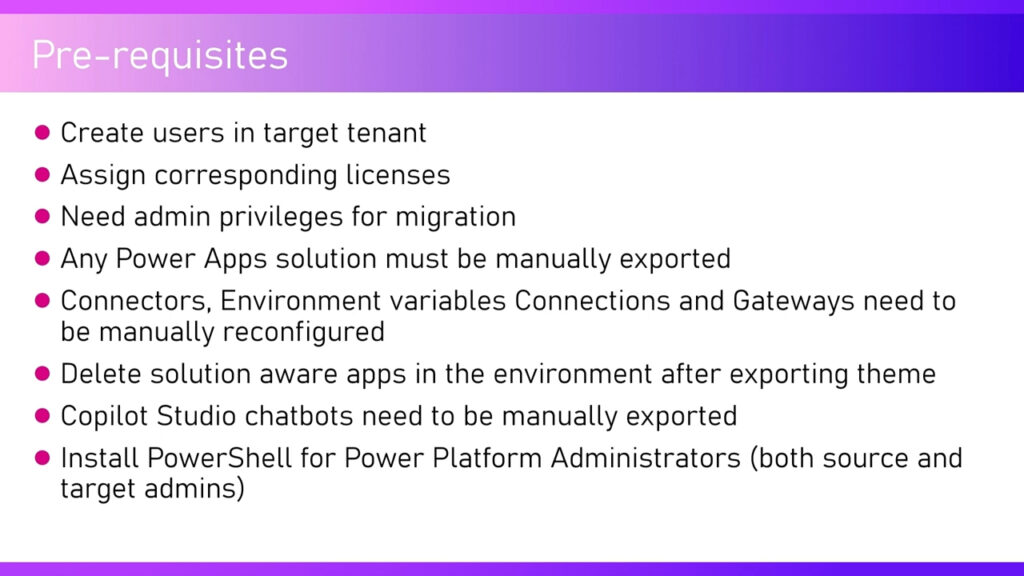
4. Supported and Unsupported Environment Types
Not every environment can be migrated.
Supported
-
Production environments
-
Sandbox environments
Not Supported
-
Developer environments
-
Default environments
-
Trial environments
-
Teams environments
Additionally, Dataverse organizations linked to Finance and Operations cannot currently be migrated (status as of late 2025).
5. Identity and Licensing Differences Between Tenants
Source and destination tenants are independent. Therefore:
-
User identities differ (domains are different)
-
Email addresses differ
-
Licensing models may differ
-
Administrative roles are separate
For example:
-
Source tenant domain:
girish.onmicrosoft.com -
Destination tenant domain:
girishinc.onmicrosoft.com
User identities and permissions must be aligned during migration.
6. Administrative Permissions Required
Migration is an administrative operation.
You must have admin privileges in both:
-
Source tenant
-
Destination tenant
7. What Gets Migrated
Migration transfers the environment and its contents, including:
-
Power Apps
-
Power Automate flows
-
Copilot Studio assets
-
Dataverse data
However, several elements require manual handling.
8. Items That Must Be Manually Exported or Reconfigured
Before or after migration, administrators must manually manage the following:
Manual export required
-
Power App solutions
-
Copilot Studio chatbots
Manual reconfiguration required
-
Connectors
-
Environment variables
-
Connections
-
Gateways
Cleanup requirement
-
Solution-aware apps must be deleted after export
9. PowerShell Requirement
PowerShell for Power Platform administrators must be installed for both:
-
Source tenant admin
-
Destination tenant admin
It is installed from the PowerShell Gallery and provides commands required for administration and migration operations.
Some migration steps cannot be completed through the user interface and require PowerShell.
10. Pre- and Post-Migration Application Reconfiguration
Some integrated services require reconfiguration after migration:
-
Dynamics 365 for Outlook
-
Server-side synchronization
-
SharePoint integration
For example, if SharePoint is configured in the source tenant, the environment must be remapped to the appropriate SharePoint location in the destination tenant.
11. User Mapping File (Critical Requirement)
A user mapping file must be created to match user identities between tenants.
This file is typically an Excel document that maps:
-
Source user principal name
-
Destination user principal name
Example:
| Source User | Destination User |
|---|---|
| [email protected] | [email protected] |
During migration:
-
Records created by the source user are reassigned to the mapped destination user.
This mapping ensures ownership continuity.
12. Submitting a Tenant Move Request
Migration begins by selecting an environment and choosing Move environment.
The system generates:
-
Migration request
-
Target tenant ID
-
Migration ID
The environment does not move immediately. The destination tenant must approve the request.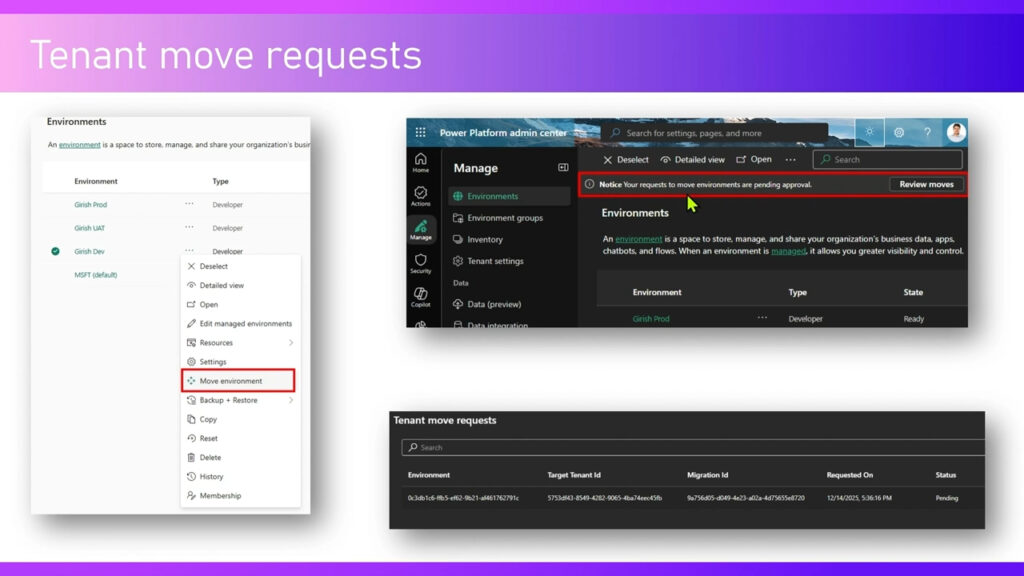
13. PowerShell Commands Used in Migration
Certain operations require PowerShell.
Submit migration request
Specify:
-
Source environment
-
Destination tenant ID
View migration requests
Check whether a request has been processed.
View approval requests
Retrieve pending migration approvals.
Approve migration
Use the migration ID to approve.
This step is required because multiple migrations may exist simultaneously.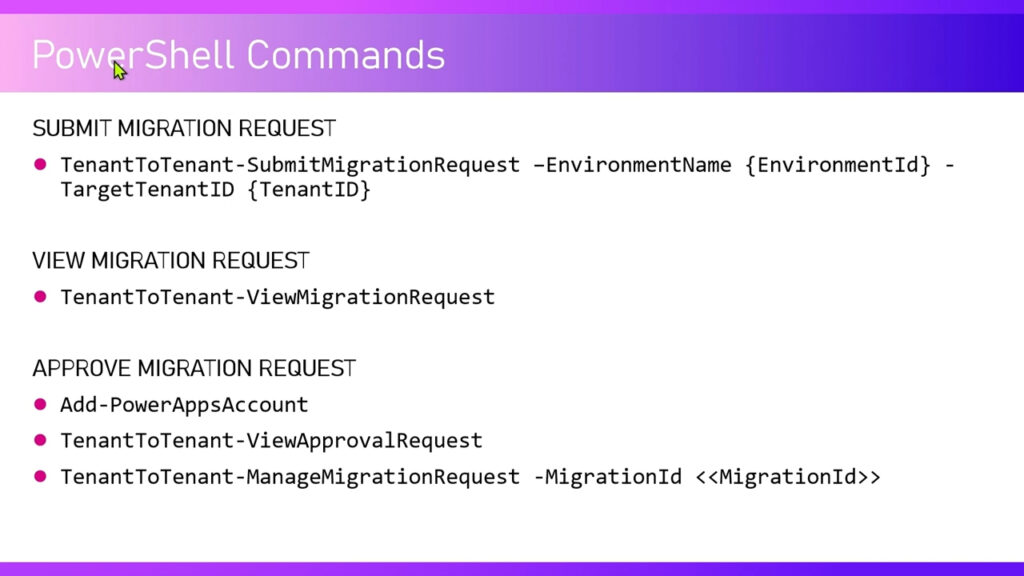
14. Identifying Source and Destination Tenants
Administrators often manage multiple tenants. Each tenant has:
-
Unique tenant ID
-
Unique domain
-
Separate user set
Migration can occur in either direction, provided administrative access exists on both sides.
15. Finding the Destination Tenant ID
In the Power Platform admin center:
-
Open session details
-
Locate the target tenant ID
This ID is required when submitting the migration request.
16. Submitting the Request Does Not Move the Environment Immediately
Submitting a request only initiates the process.
Migration proceeds only after:
-
Destination tenant reviews the request
-
Administrator approves it using PowerShell
17. Reviewing Pending Migration Requests
Administrators can:
-
View pending requests
-
Review migration details
-
Cancel migration if needed
Dismissing or cancelling prevents migration if approval is not granted.
18. Approval Process
Approval requires:
-
Retrieve migration ID
-
Execute approval command
Currently, approval cannot be completed through the user interface. PowerShell is required.
19. Monitoring Migration Status
Both tenants can see status indicators such as:
-
Pending
-
Submitted
-
Awaiting approval
Refreshing the environment list updates status visibility.
20. Cancelling Migration
Migration can be cancelled before approval by:
-
Dismissing request
-
Not approving request
If approval never occurs, migration does not proceed.
21. Key Limitations (as of early 2026)
-
Only managed environments supported
-
Only production and sandbox environments supported
-
Finance and Operations linked Dataverse not supported
-
Some components require manual export
-
Some integrations require reconfiguration
-
Approval requires PowerShell
Future updates may remove some limitations.
22. Summary of the Migration Workflow
-
Prepare source environment
-
Export required components manually
-
Create user mapping file
-
Install PowerShell tools
-
Submit migration request
-
Retrieve migration ID
-
Approve migration in destination tenant
-
Reconfigure integrations and services
23. Conclusion
Tenant-to-tenant migration in the Power Platform admin center enables organizations to move complete environments across tenants rather than transferring individual components. This is particularly useful when development, testing, and production occur in separate tenants.
The process requires administrative coordination, manual preparation, PowerShell usage, and careful identity mapping. With proper preparation, full environment migration across tenants becomes a structured and manageable operation supported by Microsoft technologies.