

This article explores the Analyst Agent available within Microsoft 365 Copilot. The Analyst Agent is an out-of-the-box intelligent assistant designed to analyze, interpret, and summarize data from multiple sources. It enables users to transform raw information into meaningful insights that support informed decision-making.
To access the Analyst Agent, a valid Microsoft 365 Copilot license is required. The agent operates within the Microsoft 365 ecosystem and is designed to work only with data that users are authorized to access.
What Is the Analyst Agent?
The Analyst Agent is a built-in analytical assistant available in Microsoft 365 Copilot. Its primary function is to perform structured data analysis and present results in an understandable and actionable form.
It can:
-
Summarize data
-
Generate charts and visualizations
-
Interpret trends and patterns
-
Perform analytical reasoning
-
Convert raw data into structured information
The agent works with different data formats, including:
-
Text documents
-
Structured files
-
Images
-
Tabular datasets
Conceptually, the Analyst Agent functions like a skilled data analyst who extracts insights quickly from raw input and converts them into clear, decision-ready information.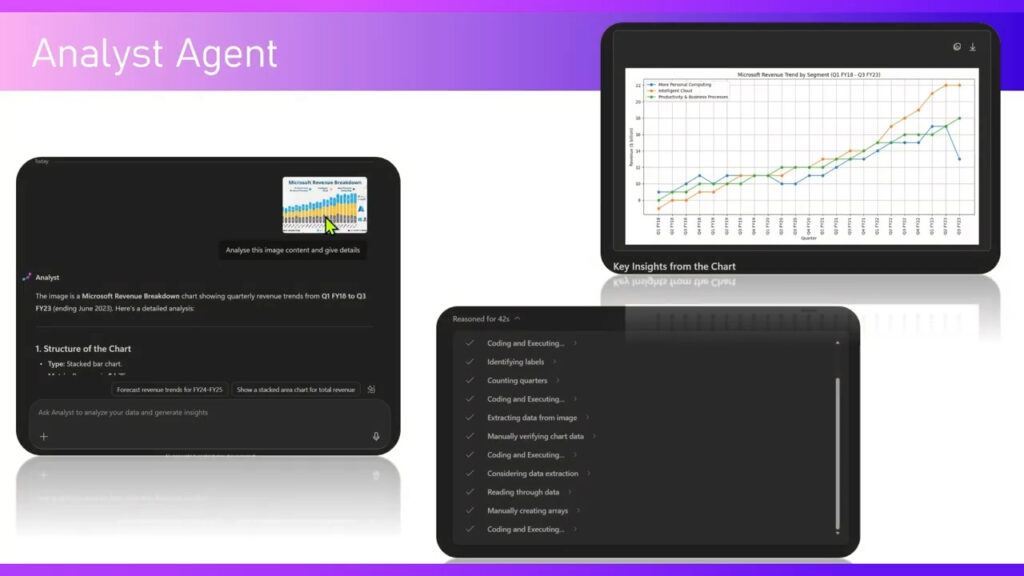
Core Analytical Capabilities
Data Interpretation and Summarization
The agent analyzes content and produces concise summaries that help users understand key findings without manually reviewing large datasets or lengthy documents.
Visualization Generation
It automatically generates visual representations such as:
-
Bar charts
-
Line charts
-
Pie charts
-
Trend visualizations
These visualizations help users identify patterns and relationships more easily.
Python-Based Data Processing
For advanced analysis, the Analyst Agent can execute Python code in real time. This enables:
-
Complex calculations
-
Data transformations
-
Pattern detection
-
Statistical analysis
The agent displays the code it runs and logs the analytical steps taken during processing.
Secure Data Access
The agent only processes data the user is authorized to access. It does not retrieve or analyze restricted or unauthorized information.
Multi-Source Integration
The agent connects to multiple Microsoft 365 data sources, including recently used files and cloud-stored documents. It can analyze:
-
Excel spreadsheets
-
Word documents
-
Power BI dashboards
-
Uploaded files
-
Images
Its role is to scan these sources and extract meaningful insights.
Accessing and Installing the Analyst Agent
When navigating to the Microsoft 365 Copilot environment, the Analyst Agent may not be installed by default in the user interface. If it is not visible, it must be added to the tenant.
Typical access steps include:
-
Navigate to the Microsoft 365 cloud portal.
-
Locate the Agents section in the left navigation pane.
-
If not visible, open All Agents.
-
Search under agents provided by Microsoft.
-
Select the Analyst Agent and click Add.
-
After installation, select Open to launch the interface.
The Analyst Agent cannot be uninstalled once available, but it can be shared with others.
Analyst Agent Interface Overview
When opened, the interface provides several functional areas:
-
Prompt input field for analysis requests
-
File upload and content attachment options
-
Interaction history
-
Suggested analytical prompts
-
Recommendations
-
Microphone input for dictation
-
Settings and performance configuration
-
Scheduled prompts
-
Recent pages
Users can view all previous analytical sessions in the history panel.
Available Analytical Prompts
The system provides built-in prompts to guide analysis, such as:
-
Identify trends in uploaded files
-
Determine correlated variables
-
Visualize relationships
-
Generate quick insights from data
-
Create structured tables
-
Perform comparative analysis
Users may also enter custom prompts manually.
Example: Analyzing a Document
A common use case involves analyzing a large document, such as an annual report.
Process
-
Upload the document using Add Content.
-
Select file from local storage or cloud.
-
Confirm upload (files are processed through organizational storage).
-
Submit a prompt such as:
“What are some quick insights about the data from the uploaded file?”
Processing Workflow
During analysis, the agent:
-
Parses document structure
-
Inspects content
-
Executes Python code
-
Scans for financial patterns
-
Identifies highlights
-
Generates summaries
The system displays each step transparently, including code execution and reasoning logs.
Processing time varies depending on data size and complexity, typically ranging from one minute to over ten minutes.
Transparency and Auditability
Unlike traditional automated tools that produce only final outputs, the Analyst Agent provides:
-
Step-by-step processing logs
-
Code execution records
-
Analytical reasoning
-
Source references
This ensures visibility into how conclusions were produced.
Example: Image Analysis
The Analyst Agent can also analyze image-based data.
When an image containing structured information (such as a financial breakdown) is uploaded, the agent can:
-
Identify the subject of the image
-
Extract structured meaning
-
Produce descriptive analysis
-
Offer to generate trend visualizations
If requested, the agent can create charts based on interpreted data and provide key insights derived from the visual content.
Managing Conversations and History
Users can access prior interactions through the history panel. Each entry includes:
-
Uploaded source files
-
Prompts submitted
-
Analytical steps performed
-
Generated insights
Users can reopen any previous session and continue analysis.
Source Tracking and Output Controls
Each analytical result includes a Sources section showing which inputs were used.
Users can also:
-
Copy responses
-
Provide feedback
-
Save outputs to pages or notebooks
-
Organize analytical results for later use
Example: Generating Visualizations from Text Data
When a document contains tabular numerical data without charts, the agent can generate visualizations automatically.
For example, it can:
-
Identify revenue segments
-
Create comparison charts across fiscal years
-
Highlight performance patterns
-
Generate bar charts and pie charts
-
Provide interpretive commentary
The system may also suggest additional analytical enhancements, such as highlighting high-growth segments.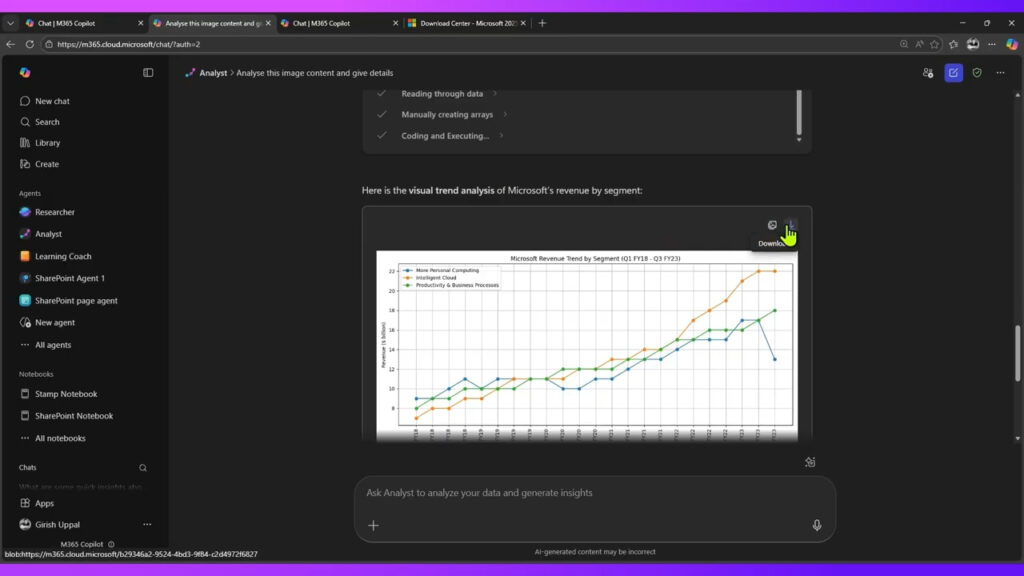
Advanced Interaction and Iterative Analysis
After initial results, users can request additional visualizations or deeper insights, such as:
-
Segment distribution charts
-
Growth comparisons
-
Highlighted metrics
-
Share-of-total calculations
The agent iteratively refines analysis based on follow-up prompts.
Permissions and Licensing Information
Agent details and requirements are available in the About section, including:
-
Required permissions
-
Licensing requirements
-
Functional description
-
Data access scope
Purpose and Strategic Value
The Analyst Agent is designed to support data-driven decision-making by:
-
Reducing manual data review
-
Automating complex analysis
-
Providing visual clarity
-
Connecting data points across sources
-
Delivering structured insights quickly
Internally, it uses deep reasoning models to interpret data relationships and produce meaningful conclusions.
Conclusion
The Analyst Agent in Microsoft 365 Copilot is a powerful built-in analytical assistant that processes structured and unstructured data across multiple formats. By combining automated analysis, real-time Python execution, transparent processing logs, and dynamic visualization capabilities, it enables organizations to extract insights efficiently and make informed strategic decisions.
It transforms raw information into actionable intelligence, making it a central analytical tool within the Microsoft 365 environment.